
How do I join MyMacca's Rewards?
1. Download and sign up to the MyMacca's app
2. Accept the terms and conditions and turn on your location services
3. Access MyMacca's rewards.
MyMacca's® FAQs
Frequently Asked Questions
Life is a game of changing!
How do I update my MyMacca's account information?
To update your account information:
1. Open the MyMacca's app and sign in
2. Tap 'More' on the bottom of the screen
3. Tap 'Personal Settings'
4. Make any changes to your name, phone number, password and postcode.
How do I delete my MyMacca's account?
When you delete your account, all your points, offers or rewards earned will also be lost and will not be able to be recovered. Additionally, all of your MyMacca's app data will be lost and this action cannot be undone.
If you wish to delete your account:
1. Open the MyMacca's app and sign in
2. Tap 'More' on the bottom of the screen
3. Tap 'Profile'
4. Tap 'Delete Account'
For more information about account details, check out our MyMacca's Mobile Order and Pay FAQ's here.
My MyMacca's Rewards points are missing?
It can take up to 30 minutes for your points to appear in your MyMacca's app. If after 30 minutes your points still haven't appeared, follow these steps:
1. Select 'More
2. Select 'Careers, Contact & Legal'
3. Select 'Contact Us'
4. Enter your comments regarding your order, including your order number, subtotal and if there’s any reason you think you might be missing points (e.g. forgot to scan)
Please click here for full details
Will my MyMacca's Rewards points expire?
Nothing lasts forever, but you’ll have plenty of time to save up for your rewards!
Your points will expire on the first day of the month, after 12 months from when points were first earned. For example if you earn points on January 8th 2022, those points will expire on February 1st 2023. This gives you plenty of time to redeem your points.
We’ll also give you a heads up before your points expire.
Earning points is easy!
How do I earn points on MyMacca's Rewards?
Simply download the MyMacca’s app here and sign up and create your very own MyMacca's account.
You can order your way to earn points, just order as normal at the Drive Thru, Front Counter or Kiosk but be sure to tell us your MyMacca’s Rewards code. OR you can earn points automaticall when your order and pay on the MyMacca's app.
Do I earn MyMacca's Rewards from McDelivery?
Yes. When you order McDelivery through the MyMacca’s app you can earn points and & redeem rewards.
How many points do I earn with every order?
$1 = 100 points. That means you’ll receive 100 points for every dollar you spend on eligible purchases
Is there a minimum amount of points I need before I can start redeeming MyMacca's Rewards?
You can start redeeming your MyMacca’s Rewards once you have 3000 points.
How do I redeem MyMacca's Rewards?
To redeem through Mobile Ordering on the MyMacca's app:
1. Open the app and select 'Rewards & Deals' in the bottom navigation bar.
2. Find the item you wish to redeem.
3. Select 'Add to Mobile Order'
To redeem in-restaurant:
1. Open the MyMacca's app and select 'Rewards & Deals'
2. Find your reward and select 'Use at Restaurant'
3. Tell the crew your code at the speaker box in Drive Thru before you start your order or enter the code on your Kiosk.
Can I redeem a reward and earn points in the same order?
You only need one code per transaction. This means you can earn points and redeem rewards in the same order.
Simply share your code to redeem your free item and you’ll automatically earn points on every dollar you spend on eligible items. The same is true for any codes you use on your order, which means you can earn on every dollar spent on eligible items while collecting points for your next feast.
Can I redeem MyMacca's Rewards with McDelivery?
Yes. When you order McDelivery through the MyMacca’s app you can earn points and & redeem rewards.
Are there earning limits on MyMacca's Rewards?
You can accumulate a maximum of 40,000 points at any one time. This limit does not include points awarded as part of a McDonald’s competition. You will reach an earning cap after 20 transactions (which includes both earning transactions and redemption transactions) in a rolling 24-hour period (“Earning Cap”). Any transactions placed after reaching the Earning Cap will not earn reward points (if they are made in the same 24-hour period as the first 20 transactions), but will still be counted towards your Earning Cap and may impact when you can start earning points again. For example: if you make 23 transactions in a 24-hour period, you do not earn points on the last 3 transactions and you will need to wait until 24 hours from your 23rd transaction to start earning points again.
Q: What’s changing with the MyMacca’s ordering experience?
A: A new feature is coming that will allow you to get your food faster and fresher at front counter when you order and pay in the MyMacca’s app. This update means you will now select the restaurant you’ll be visiting prior to placing your order, and as you get close to the restaurant we’ll start prepping the order so it’s fresh and on time for your arrival.
As a MyMacca’s customer you will have a dedicated Mobile Order Pickup point at the front counter in restaurant for you to collect your order from.
Q: Will I still be able to earn Reward Points for my order?
A: Yes! All eligible MyMacca’s orders will receive reward points. You can also still redeem eligible Rewards, Deals, and Bonus Points.
Q: Can I change or cancel my order once its placed?
A: You can cancel an order using the "Cancel Order" button in your order details on the app. However, if your order has started being prepared (usually within around 5 minutes of the restaurant), you won't be able to cancel your order.
Q: What happens if I go to a different restaurant than I selected when placing my order? Can I pick up there?
A: We are unable to change your pickup restaurant after you have placed your order in the app. Make sure to double-check the selected restaurant before you submit your order.
If you visit a different restaurant, you have two options:
1. You can cancel your original order using the “Cancel Order” button in your order details. After cancelling your order, you can re-order your meal at the new restaurant and pay again. Remember to provide your loyalty code to earn points with the new transaction.
2. Head to the restaurant selected in the app. That restaurant will already have your order and payment.
Q: What happens if I never check in or pick up my order?
A: You have the option to cancel your order using the "Cancel Order" button in your order details as long as it has not started being prepared. If you don’t come to pick it up the order will be cancelled in 60 minutes. If the payment is processed, please contact the restaurant where you purchased your order or our customer service team.
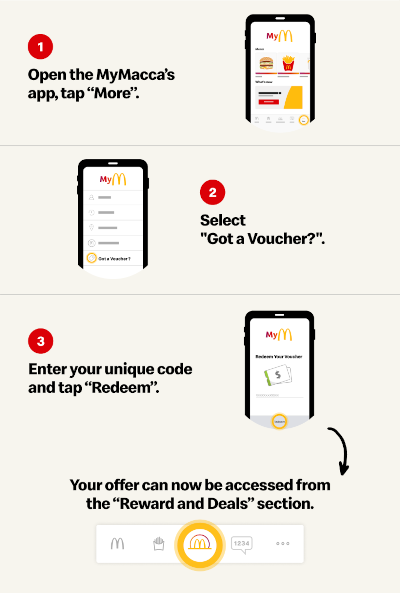
A: Redeeming your voucher in the MyMacca’s app is quick and easy. Just follow these simple steps to apply your code and enjoy your offer
For full Terms and Conditions click here, to view our Privacy Policy here, and for MyMacca's FAQs click here.
Life is a game of changing!
How do I update my MyMacca's account information?
To update your account information:
1. Open the MyMacca's app and sign in
2. Tap 'More' on the bottom of the screen
3. Tap 'Personal Settings'
4. Make any changes to your name, phone number, password and postcode.
How do I delete my MyMacca's account?
When you delete your account, all your points, offers or rewards earned will also be lost and will not be able to be recovered. Additionally, all of your MyMacca's app data will be lost and this action cannot be undone.
If you wish to delete your account:
1. Open the MyMacca's app and sign in
2. Tap 'More' on the bottom of the screen
3. Tap 'Profile'
4. Tap 'Delete Account'
For more information about account details, check out our MyMacca's Mobile Order and Pay FAQ's here.
My MyMacca's Rewards points are missing?
It can take up to 30 minutes for your points to appear in your MyMacca's app. If after 30 minutes your points still haven't appeared, follow these steps:
1. Select 'More
2. Select 'Careers, Contact & Legal'
3. Select 'Contact Us'
4. Enter your comments regarding your order, including your order number, subtotal and if there’s any reason you think you might be missing points (e.g. forgot to scan)
Please click here for full details
Will my MyMacca's Rewards points expire?
Nothing lasts forever, but you’ll have plenty of time to save up for your rewards!
Your points will expire on the first day of the month, after 12 months from when points were first earned. For example if you earn points on January 8th 2022, those points will expire on February 1st 2023. This gives you plenty of time to redeem your points.
We’ll also give you a heads up before your points expire.
Earning points is easy!
How do I earn points on MyMacca's Rewards?
Simply download the MyMacca’s app here and sign up and create your very own MyMacca's account.
You can order your way to earn points, just order as normal at the Drive Thru, Front Counter or Kiosk but be sure to tell us your MyMacca’s Rewards code. OR you can earn points automaticall when your order and pay on the MyMacca's app.
Do I earn MyMacca's Rewards from McDelivery?
Yes. When you order McDelivery through the MyMacca’s app you can earn points and & redeem rewards.
How many points do I earn with every order?
$1 = 100 points. That means you’ll receive 100 points for every dollar you spend on eligible purchases
Is there a minimum amount of points I need before I can start redeeming MyMacca's Rewards?
You can start redeeming your MyMacca’s Rewards once you have 3000 points.
How do I redeem MyMacca's Rewards?
To redeem through Mobile Ordering on the MyMacca's app:
1. Open the app and select 'Rewards & Deals' in the bottom navigation bar.
2. Find the item you wish to redeem.
3. Select 'Add to Mobile Order'
To redeem in-restaurant:
1. Open the MyMacca's app and select 'Rewards & Deals'
2. Find your reward and select 'Use at Restaurant'
3. Tell the crew your code at the speaker box in Drive Thru before you start your order or enter the code on your Kiosk.
Can I redeem a reward and earn points in the same order?
You only need one code per transaction. This means you can earn points and redeem rewards in the same order.
Simply share your code to redeem your free item and you’ll automatically earn points on every dollar you spend on eligible items. The same is true for any codes you use on your order, which means you can earn on every dollar spent on eligible items while collecting points for your next feast.
Can I redeem MyMacca's Rewards with McDelivery?
Yes. When you order McDelivery through the MyMacca’s app you can earn points and & redeem rewards.
Are there earning limits on MyMacca's Rewards?
You can accumulate a maximum of 40,000 points at any one time. This limit does not include points awarded as part of a McDonald’s competition. You will reach an earning cap after 20 transactions (which includes both earning transactions and redemption transactions) in a rolling 24-hour period (“Earning Cap”). Any transactions placed after reaching the Earning Cap will not earn reward points (if they are made in the same 24-hour period as the first 20 transactions), but will still be counted towards your Earning Cap and may impact when you can start earning points again. For example: if you make 23 transactions in a 24-hour period, you do not earn points on the last 3 transactions and you will need to wait until 24 hours from your 23rd transaction to start earning points again.
Q: What’s changing with the MyMacca’s ordering experience?
A: A new feature is coming that will allow you to get your food faster and fresher at front counter when you order and pay in the MyMacca’s app. This update means you will now select the restaurant you’ll be visiting prior to placing your order, and as you get close to the restaurant we’ll start prepping the order so it’s fresh and on time for your arrival.
As a MyMacca’s customer you will have a dedicated Mobile Order Pickup point at the front counter in restaurant for you to collect your order from.
Q: Will I still be able to earn Reward Points for my order?
A: Yes! All eligible MyMacca’s orders will receive reward points. You can also still redeem eligible Rewards, Deals, and Bonus Points.
Q: Can I change or cancel my order once its placed?
A: You can cancel an order using the "Cancel Order" button in your order details on the app. However, if your order has started being prepared (usually within around 5 minutes of the restaurant), you won't be able to cancel your order.
Q: What happens if I go to a different restaurant than I selected when placing my order? Can I pick up there?
A: We are unable to change your pickup restaurant after you have placed your order in the app. Make sure to double-check the selected restaurant before you submit your order.
If you visit a different restaurant, you have two options:
1. You can cancel your original order using the “Cancel Order” button in your order details. After cancelling your order, you can re-order your meal at the new restaurant and pay again. Remember to provide your loyalty code to earn points with the new transaction.
2. Head to the restaurant selected in the app. That restaurant will already have your order and payment.
Q: What happens if I never check in or pick up my order?
A: You have the option to cancel your order using the "Cancel Order" button in your order details as long as it has not started being prepared. If you don’t come to pick it up the order will be cancelled in 60 minutes. If the payment is processed, please contact the restaurant where you purchased your order or our customer service team.
A: Redeeming your voucher in the MyMacca’s app is quick and easy. Just follow these simple steps to apply your code and enjoy your offer
Mobile Ordering
Mobile Ordering via the MyMacca's app gives you more of what you love with MyMacca’s, so you can order, earn & enjoy.
Is the full menu available on Mobile Ordering?
Yes, the full McDonald's menu is available on Mobile Ordering.
Are there exclusive promotions for Mobile Ordering?
The MyMacca's app gives you access to exclusive deals and promotions, as well as our MyMacca's Rewards program. Learn more here.
Fast, Safe & Secure payments
Make your Macca’s run a speedy one! Just add your card and we will safely secure your details for a quick and easy checkout. All payments made using Mobile Ordering on the MyMacca's app are processed securely for your peace of mind.
Mobile Ordering is available via the MyMacca’s Mobile Ordering app in all participating McDonald’s restaurants in Australia.
All participating McDonald's restaurants will appear in the MyMacca’s App, and will allow you to Place an Order, and Check-in to confirm your order in the app. Please make sure you turn on your phone location services, so that we can show you all of the available features in the App.
Many of our restaurants are operated by independent franchisees, so some menu items vary by restaurant and time of day. On top of this, some items are not yet available via Mobile Ordering. You will be happy to know that all of our McClassics® are on the menu. And our most popular snacks and treats are easily found in the menu. We are always working to add more items to our menu, so please keep an eye on it.
Don’t see something you thought you would? The menu items will be displayed based on the selection you make to view either our Breakfast, Regular or Overnight menu.
Visit the menu and use the Search field at the top of the page, then type the item name or keyword into the search bar to find what you’re looking for.
No, you can choose and order just one single menu item, or you can bulk up your order with customised meals for your family and friends.
When you select a McDonald’s burger, McWrap®, salad, Hotcakes or McMuffin®, the ‘Item Only’ option will be selected by default. To order a meal, you will need to select a Small Meal, Medium Meal or Large Meal option via the buttons on the product display page. You can also choose to ‘Make it a Meal’ when you’re viewing the item and your order in the Cart, which will return you to the product display page so you can select the meal size you want.
Yes, you can add or remove items from the cart before you place your order and before you check-in at a participating McDonald’s restaurant. Simply edit your order in the cart and make necessary changes.
There is currently no ‘cancel’ function after you have placed your order; however, your purchase is not officially made and your payment card is not charged until you Check-in at the restaurant where you’re ordering and picking up the food. So, you can empty your Cart at any time before you Check-in at your selected a participating restaurant.
You can send only one Mobile Order at a time, and you can only send one order to a participating restaurant at a time.
When you arrive at your selected participating McDonald’s restaurant, you will need to Check-in to finalise and pay for your order. When you Check-in with your preferred pick up method, your order is completed at the participating restaurant you choose and your payment card is charged. Make sure you only Check-in when you are at the restaurant or in the carpark, and make sure your phone’s location services settings are turned on.
Yes, but your order will not be officially confirmed and prepared at the restaurant until you Check-in at the restaurant. Once you have Checked-in and officially finalised your order via the app, your Order Code will be valid for 2 hours from the time you confirmed it.
We make collecting your MyMacca's Mobile Order as safe and simple as possible.
How do I select my pickup location?
Your nearest McDonald's to where you ordered will be automatically entered as your pickup location. To change this, select the arrow on the right hand side of the banner and use the map to select your preferred location.
What do I do when I arrive?
Once you have arrived, you will need to select a pick up option - then we'll begin preparing your order. Remember to have your device with you when collecting your mobile order. The pick up options include:
In-Restaurant.
Table Service: Simply find a table inside the restaurant and enter the table number in the app. One of our friendly crew members will deliver the food to your table.
Eat In or Take Away: You will be issues with an order number via the app. Once your order is ready, our crew will call out your name or order number from the Front Counter for you to collect.
Drive Thru.
When you arrive at the Drive Thru speaker box, simply let the crew know you have a mobile order and tell them your order number.
What if I can't choose a pick up option?
If you have arrived at the restaurant but can't choose a pick up option, simply see a crew member for help & show them your order number.
How do I order using the MyMacca's app?
Order
Simply download the MyMacca's app [link], and pick out your favourite McDonald’s items, a la carte or make a meal.
Earn & Enjoy
Earn points every time. Simply tell us your one-time code when you reach the Drive Thru, Kiosk or Front Counter. Order and pay in the app to earn points automatically.
Use your points to redeem a range of rewards and tap into exclusive MyMacca’s deals - only available in the app
Automatically earn 100 points for every $1 you spend on all eligible food and drink purchases in the MyMacca’s app, including anything you spend on offers and deals.
Pay
Make your payment using your Visa, Mastercard,, American Express or Apple Pay. Your card will not be charged until you check in. You can add or remove a payment card using the Checkout and My Account screens.
Pick Up On Your Terms
Check in at any participating McDonald’s restaurant to pick up your meal or have your food brought to you contactlessly, or pick it up it in the Drive Thru.
Cashless Mobile Payment
You can register your Visa, Mastercard and Amex. Apply Pay and Google pay are also avaliable on the MyMacca's app.
No, McDonald’s does not charge for card registration. When you register a payment card to use with MyMacca’s Mobile Ordering, McDonald’s third party provider sends an authentication request to your payment card issuer. This request may be reflected as a temporary transaction on your account. For most card brands, this is a temporary $0 transaction; however, use of some payment card brands may reflect a temporary $1 transaction that is subsequently reversed. Each card issuer and payment card brand is different, so please check with your payment card issuer for more information.
You can only add or remove payment card information from the My Account and Checkout screens. To add a payment card, simply enter details as prompted on the form and click ‘Save.’ To remove a payment card, visit the payment methods screen in the My Account section and swipe left on the card you want removed. At this time, we do not allow editing of payment card information, so if you’ve made a mistake, you’ll have to delete it and then add it again.
Your payment card will not be charged until you Check-in at the participating restaurant to complete your order and pick up your food. The app displays a ‘processing payment’ message when this is being confirmed.
You will be emailed a receipt of purchase, to the email you provided on your MyMacca’s account.
The McDonald’s restaurant that completes your order is the merchant of record.
You will be emailed a receipt of purchase, to the email you provided on your MyMacca’s account
Please contact your bank if you have any questions about charges reflected on your payment card statement (i.e., errors, duplicate charges, etc.). To dispute a McDonald’s transaction for a duplicate charge on your debit or credit card, you need to follow-up with your bank or credit card provider and they will research and take the appropriate action.
Also, please be sure to view the receipt we emailed you after your purchase.
You will receive an email receipt of your order upon successful completion of your order and transaction. On occasion, you may also receive a printed receipt from the McDonald’s restaurant in addition to the email receipt.
If you make any changes or modifications to your order in the restaurant, you may receive an updated printed receipt that reflects your changes or modifications.
Prices vary by participating restaurants. Many of our restaurants are operated by independent franchisees, so some menu items vary by restaurant and time of day.
Changes in products, pricing, taxes or other fees required by law can result from your Checking-in at a different participating restaurant than you originally selected when you created your mobile order. Changes can also result from the unavailability or outages of certain products, changes in price, or other reasons.
MyMacca's Favourites
Yes, you can favourite your orders, items from our menu, and favourite McDonald’s restaurant locations.
Yes, you can reorder items from your recent order.
Yes, kJ info is listed with menu items throughout the app and displayed with your Order.
Most of our promotions are available in the MyMacca’s app. Many of our restaurants are operated by independent franchisees, so some menu items vary by restaurant and time of day, and by product avaliablity.
Yes, you can add a MyMacca’s Mobile Deal to your Mobile Order. Simply view the deal and select ‘Add to Mobile Order’. Alternatively, ‘Add to Code’ will allow you to redeem the deal while you’re completing a Kiosk or Drive Thru order.
Notifications & Error Messages
If any item in your Cart is not available, you will receive a notification when you Check-in so you can make any necessary changes.
Pricing varies by participating restaurants, so if you sent an order to one participating restaurant and decide to Check-in at another participating restaurant, you’ll receive a notification of any price changes.
Location Services
If you choose “While Using the App” or “Always”, McDonald’s will use your current location to locate nearby restaurants. This setting is key to placing and picking up a correct order.
Feedback/Contact Us?
MyMacca's Rewards
Yes, you will reach an earning cap after 20 transactions or 40,000 points, which ever occurs first; (which includes both earning transactions and redemption transactions) in a rolling 24-hour period.
Earning points is easy! Simply download the MyMacca’s app and present your MyMacca’s Rewards code before ordering in-restaurant or collect points automatically when you order on the app.
Yes! You can earn points exclusively when ordering via the McDelivery via the MyMacca’s app. Unfortunately, you cannot earn points when ordering on a third –party delivery provider via: Uber Eats and DoorDash.
$1=100 points. That means you’ll receive 100 points for every dollar you spend on eligible purchases. You can start redeeming your MyMacca’s Rewards once you have 3000 points.
Yes! For all eligible items, you’ll still earn points on the cent. That means, if your order total is $3.75, you’ll earn 375 points.
Nothing lasts forever, but you’ll have plenty of time to save up for your rewards!
Your points will expire on the first day of the month, after 12 months from when points were first earned. For example if you earn points on January 8th 2022, those points will expire on February 1st 2023. This gives you plenty of time to redeem your points.
We’ll give you a heads up 10 days before your points expire.
Your MyMacca’s Rewards points are yours alone! Unfortunately, you can’t share or transfer them.
Of course! We’re always happy to help. It can take up to 30 mins for your points to appear on the app. If you still don’t have your points after 30 mins, follow these steps to contact us in the app:
Select 'More'
Select 'Careers, Contact & Legal'
Select 'Contact Us'
Enter your comments regarding your order, including your order number, subtotal and if there’s any reason you think you might be missing points (e.g. forgot to scan)
Bonus points are additional points you can unlock to get to your reward even faster! Check ‘Rewards & Deals’ on the MyMacca’s app and scroll down to discover available bonuses. Remember to unlock your bonus and make a qualifying purchase to get your bonus points. Bonus points will automatically be added to your account once you have made a qualifying order.
Nope! You only need one code per transaction. This means you can earn points and redeem rewards in the same order.
Simply share your code to redeem your free item and you’ll automatically earn points on every dollar you spend on eligible items. The same is true for any codes you use on your order, which means you can earn on every dollar spent on eligible items while collecting points for your next feast.
You can earn points on all food and beverage items. This means non food and beverage items won’t attract points. You also won’t be able to earn points on donations to Ronald McDonald House Charities (including roundups), and the purchase of Ronald McDonald House items or products like Silly Socks.
McDelivery and delivery fees will be excluded from earning.
Yes, you can! Simply log into your MyMacca’s account and all your rewards will still be there.
No, you can redeem only 1 reward item in a single transaction. If you have earned enough points you can absolutely redeem multiple rewards in the multiple orders.
When you’ve earned enough points, you’ll be able to redeem a range of rewards!
To redeem with Mobile Ordering:
- Open the app and select 'Rewards & Deals'
- Find the item you want to redeem
- Select 'Add to Mobile Order'
To redeem in-restaurant:
- Open the MyMacca’s App and select 'Rewards & Deals’'
- Find your reward and select 'Add to Code'
- Provide your MyMacca's Reward Code at the start of your order at the Drive Thru, Kiosk or Front Counter.
Yes, you can! Feel free to customise your ingredients, like adding on extra ingredients. If you incur any additional charges on your ingredients or customisation, you’ll also earn additional points!
Yes
Items eligible for a choice with 3000 points include:
• A choice of any Small McCafé® Beverage, excluding Frappes and selected limited time only McCafé® beverages.
• A choice of any Small Soft Drink
Items eligible for a choice with 5500 points include:
• A choice between a Bacon & Egg McMuffin® or Sausage & Egg McMuffin® or Sausage McMuffin®. These rewards are only available from 4am until 12pm.
• A choice of either an Oreo McFlurry® or M&M MINIS® McFlurry. At this time, limited time only McFlurry® flavours are excluded from rewards.
All redeemable rewards exclude limited time only products that relate to the category of rewards.
There are a few ways you can set your location in the app.
1 - Select the restaurant you would like to place your order at.
2 - Order using the same restaurant you last ordered at.
3 - Select your closest restaurant.
Be sure that your location services are switched on:
Location services is a setting in the MyMacca’s app that lets us know when you are in the vicinity of your order location, so we can start to prepare your order. You have choices as to location services: “Never”, “While Using the App”, or “Always”. If you choose “While Using the App” or “Always”, McDonald’s will use your current location.
If you choose “While Using the App” or “Always”, McDonald’s will use your current location to locate nearby restaurants. This setting is key to placing and picking up a correct order.
Already have the MyMacca’s app? No worries. If you’re ordering, you’ll see new Terms and Conditions. By accepting these, you’ll be able to access MyMacca’s Rewards. Before placing your order, make sure your location is set to the restaurant in which you wish to place your order.
No worries, if this is your first time forgetting to provide your code, you can enter the unique code on the bottom of your tax invoice at https://claim-points.mcdonalds.com.au/ to claim these points.
You can access MyMacca’s rewards’ Terms and Conditions by visiting our Terms and Conditions page here.
Use your own judgement when using rewards and take care of your personal safety. Never use your phone while driving.
If you delete your MyMacca’s account, then your account will permanently be deleted. Any points, offers or rewards earned will also be lost and will not be able to be recovered.
You can check your points balance, history and what rewards you’ve earned in the Rewards & Deal section of the app. Your points balance will typically update within 30 minutes.
Once you select a reward and exchange your points for it, the number of corresponding points will be deducted from your MyMacca’s Rewards account. The reward will then be displayed in your bag (if you have selected “Add to Mobile Order”) or displayed in a code (If you have selected ‘Use Restaurant Code’). The reward will temporarily remain in your bag or displayed in a code until you redeem it for a product. If you redeem it, but the transaction fails to complete, don’t worry because your reward will be found in the “Ready to Redeem” section of MyRewards within the MyMacca’s app. Be quick to redeem it though, because it will only stay there for 14 days after which time it will expire.
You must be registered within the app and be in a participating market in order to see deals. Make sure your location services are turned on by going to your device settings. You can turn on location services by going to your device settings and locating the McDonald’s app.
Also, once you register it may take up to 20 minutes for all deals to first show up in your app.
No, the MyMacca's app and associated deals are only available at participating restaurants in Australia.
Your deals will appear within the “Rewards & Deals” section of the app.
You can only redeem one deal per person per order. There is also a limit of one account per customer.
We want to help you celebrate your birthday with something special. Just tell us your birthday month, and when your birthday comes around keep your eyes peeled for a special surprise.
To get yours, tap Rewards & Deals in the bottom navigation bar in the MyMacca’s app. Scroll down to the Bonuses section and follow the prompts to enter your birthday month. Once submitted, you will then receive a birthday surprise in the My Deals section of the app when your birthday month* comes around.
Once you have entered your birthday month, you will not be able to update this on the app.
*If you’re within the month of your birthday when registering, you will receive the surprise the following year.
You can redeem almost all rewards via McDelivery on the MyMacca’s app. Unfortunately Hamburger and Sundaes are not yet available for redemption via McDelivery on the MyMacca’s app.
Can I redeem more than one MyMacca's Reward in a single transaction?
No! You can redeem 1 reward item in a single transaction.
Are any products excluded from MyMacca's Rewards?
You can earn points on all food and beverage items. This however means you won’t be able to earn points from donations to Ronald McDonald House Charities (including roundups), the purchase of Ronald McDonald House items, or products like Silly Socks.
McDelivery delivery fees and tips will be excluded from earning.
Log a Missed Visit - Earning Points from Physical Receipts FAQs
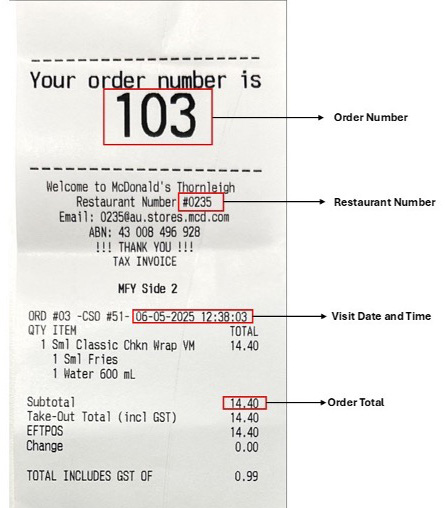
If you’re enjoying your order and suddenly realized you never provided your code, no worries! Take these steps to contact us in the app:
- Select ‘More’ in the bottom navigation
- Select ‘Log a Missed Visit’
- Select ‘Enter Receipt Details’
- Provide the restaurant number from where your order was placed, the date of your visit, the time of your visit, your order number and your order total. All of this information can be found on your receipt.
- Select Submit
We request this information to help validate your visit and tie it back to your MyMacca’s Rewards account.
Only information from physical receipts will be accepted.
To be eligible for points, receipts must be submitted within 7 days of the transaction, the total amount must be under $100, and you can only use this Log a Missed Visit feature once every 30 days.
If the information provided matches our records, your points will be updated within 48 hours. You can check your points under 'View History' on the 'Rewards & Deals' page.
If the information provided matches our records, your eligible gameplay will be updated within 3 working days—please check your game account for updates.
MyMacca's Account Info
Yes, you should use the same email on multiple devices. Once a deal is redeemed on one device it will be marked as redeemed on all devices, via your MyMacca's account.
We hope you never need to delete the MyMacca’s Mobile Ordering app, but if you do, here’s how… iPhone® users: hold your finger over the app until the “x” appears, then tap the “x” to remove the app from your phone. Android™ users: select Settings -> Manage Applications -> Downloaded. Choose the McDonald’s app and press Uninstall. On some devices, such as the Google Pixel, you can also hold the app icon and drag it into the trash can.
Note: Removing the app from your phone does not delete your MyMacca's account with McDonald’s.
We hope you don’t want to! But if you do, just launch the app and access the MyMacca's Account screen from the Menu. When your Account screen has loaded, scroll down and select Delete Account. Remember, if you delete your MyMacca’s account, then your account will permanently be deleted. Any points, offers or rewards earned will also be lost and will not be able to be recovered.
Launch the app and log in if you aren’t already. Access the MyMacca's Account screen from the Menu. From here, view and edit your first and last name.
Again, go to the MyMacca's Account section within the Menu. From here, you can change your MyMacca's password.
Again, go to the MyMacca's Account section within the Menu. From here, you can change your MyMacca's password.
You guessed it – access the MyMacca's Account section from the Menu. From here, you can change and update your postcode.
If you have not connected to McDonald’s Wi-Fry in the past, choose our Free Wi-Fry from your Wi-Fi options and click “Get Connected” when the Web Page appears. If you have connected to our Wi-Fry in the past, your phone will automatically try to connect you to the McDonald’s Wi-Fry at a restaurant. Double check that you are connected to McDonald’s Wi-Fry, and then open your phone’s Internet browser (e.g. Safari, Chrome) and go to any web page. From there, you will be presented with a McDonald’s web page. Click “Get Connected” and you’re all set! Remember, you can also use your phone data to use our app. Make sure to turn off Wi-Fi in your phone settings to make sure you are only using your phone data.
McDelivery®
To order via the MyMacca’s app…
This feature is currently only available in participating NSW restaurants. If you are within the delivery radius of a participating restaurant it's simple, just download the MyMacca’s app and follow the prompts to set up a MyMacca's account.
Once you’re in, just tap ‘Order’ on the bottom menu bar, and toggle from ‘Pick up’ to ‘McDelivery’.
To access via our third-party delivery provider…
McDelivery is available via: Uber Eats and DoorDash. To check to see if McDelivery is available near you, click here.
McDelivery on the MyMacca’s App is currently only available at participating restaurants in NSW, with plans to roll out the service to more restaurants soon. Please ensure you have the latest version of the MyMacca’s app installed. If it is not yet available at your desired delivery address you may still order McDelivery via: Uber Eats and DoorDash.
- Ensure you have the latest version of the MyMacca’s app installed. Once you’re in, just tap ‘Order’ on the bottom menu bar, and toggle from ‘Pick up’ to ‘McDelivery’.
- It may be because McDelivery is not yet available to deliver to the address input. If it is not yet available at your desired delivery address you may still order McDelivery via: Uber Eats and DoorDash.
Yes! You can earn MyMacca's points on eligible menu items when you order McDelivery exclusively on the MyMacca’s app. Non-food or beverage items, donation items & amounts, and costs including delivery fees, service fees, small order fees and delivery tips are excluded from earning points. Unfortunately, you cannot earn points when ordering via our third-party delivery providers: Uber Eats and DoorDash.
While we aim to serve up our full menu wherever possible, menu availability can vary by restaurant. To check what’s available, view menu items on the MyMacca’s app by selecting ‘Order’ on the bottom navigation bar and toggling to McDelivery.
If you placed your McDelivery order via the MyMacca’s app, you can cancel your order by calling the McDelivery Customer Service line 24/7 on 1800 865 214.
If you placed your order via our third –party delivery provider, please contact them directly via the following methods:
• Uber Eats – https://help.uber.com/ubereats
• Doordash - https://help.doordash.com or via phone: 1800 958 316
Unfortunately, this feature is not yet available for McDelivery orders via the MyMacca’s app, however, may be available on a third-party delivery provider via: Uber Eats, Menulog and DoorDash, please check their apps for details.
Yes! Bonus points are available exclusively when ordering via the MyMacca’s app, and will be automatically added when you meet the terms for the bonus point offer, unlock the bonus and apply it to your order. Be sure to check the terms to ensure you are eligible. Unfortunately, you cannot unlock and earn bonus points when ordering on a third –party delivery provider via: Uber Eats and DoorDash.
You need to check the in-app terms of your deal to ensure it is redeemable via McDelivery – if it is, then you will be able to redeem a deal and reward in the same transaction when ordering exclusively via the MyMacca’s app.
When ordering via the MyMacca’s app…
McDelivery orders are subject to a delivery fee (this amount varies for each restaurant), service fee (calculated from pre-discounted subtotal), small order fee (this fee is charged on orders with a subtotal below a certain amount), and goods and services tax. You will have the opportunity to review the price of your order (including the fees) before you select ‘Place Order’.
When ordering via a third-party delivery provider
Delivery & service fees will vary by provider. Please check your third-party provider delivery app for more details.
To have your Macca’s delivered via McDelivery, there will be a small delivery and service fee. Often, we’ll work with our partners to run promotions and special offers on your menu favourites, so keep your eyes open for some great deals. And remember that you can earn MyMacca's points on eligible items when you order McDelivery exclusively on the MyMacca’s app.
Your feedback is important to us, and will help us to continue to review and provide our customer service. Please reach out to us via mcfeedback@au.mcd.com and we will be in touch to acknowledge your feedback or help to solve an issue.
Note: when ordering via a third-party delivery provider, you’ll need to reach out to them to provide comment on the delivery service.
• Uber Eats – https://help.uber.com/ubereats
• Doordash - https://help.doordash.com or via phone: 1800 958 316
Changes with the MyMacca’s ® ordering experience
A new feature is coming that will allow you to get your food faster and fresher at front counter when you order and pay in the MyMacca’s app. This update means you will now select the restaurant you’ll be visiting prior to placing your order, and as you get close to the restaurant we’ll start prepping the order so it’s fresh and on time for your arrival.
As a MyMacca’s customer you will have a dedicated Mobile Order Pickup point at the front counter in restaurant for you to collect your order from.
Yes! All eligible MyMacca’s orders will receive reward points. You can also still redeem eligible Rewards, Deals, and Bonus Points.
You can cancel an order using the "Cancel Order" button in your order details on the app. However, if your order has started being prepared (usually within around 5 minutes of the restaurant), you won't be able to cancel your order.
We are unable to change your pickup restaurant after you have placed your order in the app. Make sure to double-check the selected restaurant before you submit your order.
If you visit a different restaurant, you have two options:
- You can cancel your original order using the “Cancel Order” button in your order details. After cancelling your order, you can re-order your meal at the new restaurant and pay again. Remember to provide your loyalty code to earn points with the new transaction.
- Head to the restaurant selected in the app. That restaurant will already have your order and payment.
You have the option to cancel your order using the "Cancel Order" button in your order details as long as it has not started being prepared. If you don’t come to pick it up the order will be cancelled in 60 minutes. If the payment is processed, please contact the restaurant where you purchased your order or our customer service team.
